Merchant guide
Launch your loyalty programme
Everything you and your team need to get started with USEDATA Loyalty: what each feature does, how to set it up in your brand portal, and what your customers see on their phones.
Updated 8 October 2026 · For brand owners, managers and counter staff
Your launch checklist
Work through these in order. Most brands are ready in an afternoon.
- 1Sign up, or sign inStart free on our sign-up page, or sign in with the HQ login we email you.
- 2Fill in your brand profileYour name, colour, logo, card image and programme terms, as members see them.
- 3Check your localizationBrand settings shows it: Singapore (GST, BCRS, PayNow, NETS) or none.
- 4Check each outletAddress, business hours, receipts, GST, service charge and PayNow.
- 5Create counter loginsOne shared login for each outlet's phone, tablet or laptop.
- 6Set your tiers and automatic rewardsPoints rates by tier, a welcome gift, and tier-up and birthday treats.
- 7Build your rewards catalogueFree items, cash vouchers and % off vouchers members swap their points for.
- 8Add your menu (optional)Items, options and payment methods, if you'll sell on the POS.
- 9Set up games and pre-orders (optional)Games that bring friends in, and orders for pick-up or delivery.
- 10Set up reservations (optional)Booking times, party sizes and how many tables each slot takes.
- 11Print posters and brief your teamA join QR at every counter, and five minutes on the counter screen.
- 12Check your creditsEvery brand starts with 1 free credit. Top up before you run low.
- 13Test it, then go liveJoin with your own email, make a test sale, then void it.
Contents
01How it works
USEDATA Loyalty has three parts that work together. You set up your programme once in the brand portal, your staff use the counter, and your customers use the member wallet on their phones.
Brand portal
For you and your managers
Set up your brand, outlets, tiers, rewards, menu, games, pre-orders and reservations, and see how the programme is doing at every outlet.
Signs in with: Your HQ email
Counter
For staff at each outlet
Runs in the browser on any phone, tablet or laptop. Scan members, sell or key in amounts, redeem vouchers and hand over pre-orders.
Signs in with: The outlet's counter login
Member wallet
For your customers
No app to download. Customers scan your QR, join with their email, then see their points, tier, rewards, vouchers and games.
Signs in with: Email and a 6-digit passcode
Who can do what
| Task | HQ login | Counter login |
|---|---|---|
| Set up the brand, outlets, tiers, rewards, menu, games and pre-order settings | Yes | No |
| Scan members, sell and redeem vouchers | Yes, working as an outlet | Yes |
| Handle pre-orders | Every outlet | Its outlet |
| Dashboard, sales and transactions | Every outlet | Its outlet |
| Void a purchase | Any purchase | Its outlet's, within 24 hours |
| Adjust points or give a voucher by hand | Yes | No |
| Upgrade a member to Paid, renew or downgrade them | Yes | Yes |
| Export members, transactions and sales to CSV | Yes, with your password | No |
02Sign in to your portal
Everyone signs in on the same screen at loyalty.usedata.co/portal/login. There are two kinds of login.
- Your HQ login is your email address. Either you sign up yourself (below), or we create it when we set up your brand and email you a temporary password, which you change the first time you sign in. Change it any time with Change password at the bottom of the menu.
- Counter logins are usernames such as
kopi-corner.bugis, one for each outlet. You create them on the Outlets page (see Outlets), and staff type the username and password here.
Sign up yourself
Start free on the website (or loyalty.usedata.co/signup) sets up your business in a few minutes, live straight away, with 1 free credit to try it (see Credits).
- Enter your business name, its link name (your members' join link), food and drink or retail, and your first outlet.
- Say whether your business is in Singapore. If it isn't, the form lists what you won't have (GST, BCRS deposits, Nutri-Grade marks, PayNow and NETS on the POS, and paying online for pre-orders). Your loyalty programme works fine on its own. This can't be changed later (see Your localization).
- Enter your email and tap Email me a code. Type the 6-digit code, choose a password, and tap Create my account.
You start with pre-orders and games on. Table reservations are by invitation: ask us if you'd like them.
03Your brand profile
Your brand profile is what customers see when they join, and every time they open your card in their wallet.
In your portal: Settings
- Enter your Brand name and choose your Business type: food & beverage or retail.
- Add a short Tagline and a Description of your business.
- Pick your Brand colour (Preview button shows it on a button) and Upload your logo. It starts whole in a square frame: zoom in or drag it to fit, then Use photo. A transparent background stays transparent.
- Optionally, add a Card image: the background of your member card in the wallet, behind your logo, name and the member's points. Position and zoom it in the 2:1 frame (best from 1200 × 600 px, at least 800 × 400), with the main subject in the middle, since Favourites shows it as a square. It's darkened a little so the text stays readable. Without one, the card is your brand colour.
- Write your Programme terms, the rules members agree to, such as “Points are earned on nett spend. One voucher per bill.”
- Press Save settings.
With a card image
What your customers see
Your localization
Your brand is set up with a localization, which you chose when you signed up (or we chose with you when we created your brand). It decides which country-specific options you have, and it can't be changed afterwards, because your reports and exports depend on it. Brand settings shows yours under Localization.
- Singapore: GST, BCRS deposits, PayNow and NETS, and online payment for pre-orders by PayNow. Parts of this guide marked Singapore apply to Singapore brands only.
- No localization: none of these. Your outlets have service charge only, you take cash, card and your own payment methods, and customers pay for pre-orders when they collect or on delivery.
A brand in another country is set up again with that country's localization.
04Outlets, QR posters and counter logins
Every outlet has its own join QR (sign-ups are credited to it), its own counter login, and its own receipt and tax settings. Points and vouchers work at every outlet. Your first outlet is created with your brand: check it before you launch, and add the others with New outlet.
In your portal: Outlets & logins
- Press Edit on an outlet and check its Outlet name, Short code, Address and Phone. The address is shown to customers and printed on receipts. The short code is part of the join QR, so changing it changes the QR.
- Open Business hours and set the days and hours the outlet is open. Pre-order pick-up and delivery times are only offered while it's open.
- Singapore Under PayNow for pre-orders, upload the outlet's PayNow QR image (it starts whole in a square frame: zoom in to trim the edges, keeping the whole QR) and enter the payee name and UEN customers see when they pay online.
- Under Receipt settings, enter the Registered company name printed on receipts.
- Under GST and service charge, set any Service charge (%), which applies to dine-in orders only. If you're GST-registered Singapore, enter the GST rate and GST registration no., and choose whether your Menu prices include GST or it's added to the bill. Then Save outlet.
Counter logins
Each outlet needs a counter login for the phone, tablet or laptop at its counter. Under Counter login on the outlet, press Create counter login, choose the username (it starts with your brand's name, such as kopi-corner.bugis), keep the generated password or type your own, and press Create login. Note the password down for your staff. Reset password gives the outlet a new one, and Remove signs it out.
Your links and QR codes
Under Links and QR codes, each outlet has up to three, each with QR image (the code on its own, for menus, table stickers or social posts) and Copy link:
- Member sign-up: customers land on your join page (see Your brand profile), and their sign-up is credited to that outlet. Poster prints an A5 poster with this QR and your welcome reward.
- Reservations (when you take them): members book a table in their wallet, and anyone else can book as a guest without signing in. See Table reservations.
- Pre-orders (when you take them): customers sign in or join first, then order ahead from that outlet. See Pre-orders.
05Tiers and automatic rewards
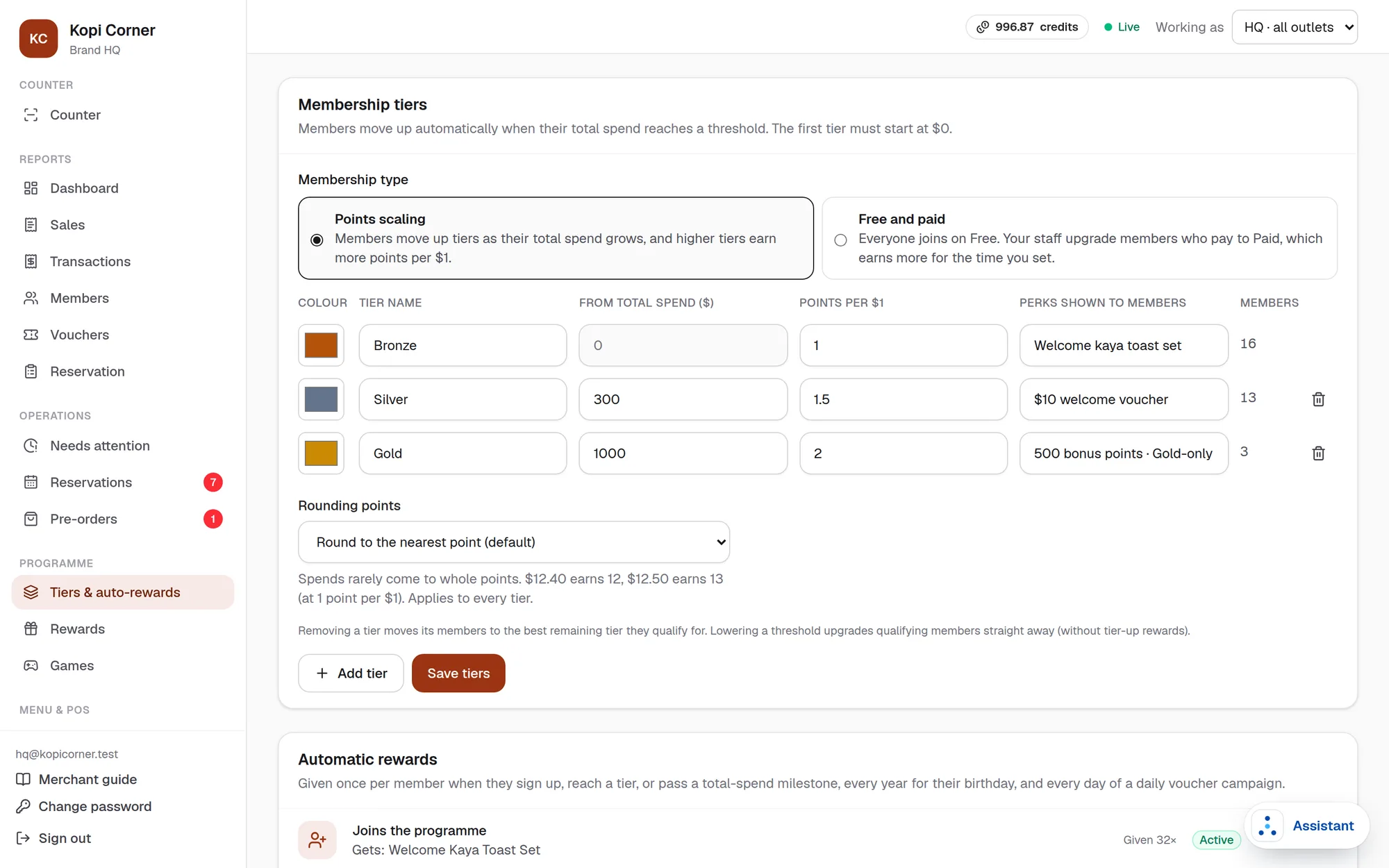
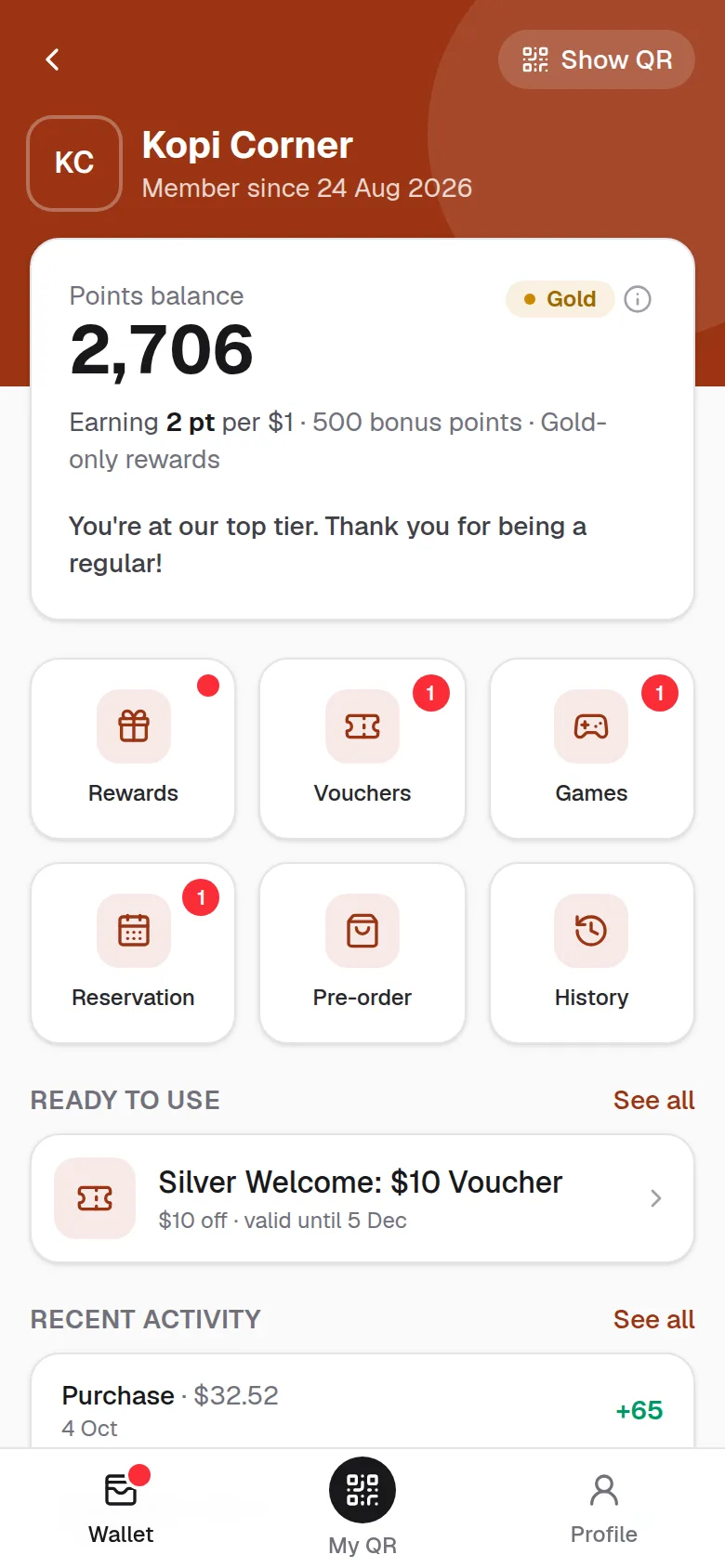
Tiers reward your regulars: members move up automatically as their total spend with your brand grows, and higher tiers earn points faster. Automatic rewards are treats the programme sends by itself.
In your portal: Tiers & auto-rewards
Membership tiers
Your brand starts with three tiers: Member from $0 at 1 point per $1, Silver from $300 at 1.5 points, and Gold from $1,000 at 2 points. Rename them and change them to suit your business.
- For each tier, set the Tier name, its Colour, From total spend ($), Points per $1 and the Perks shown to members. The first tier starts at $0.
- Choose Rounding points: a spend rarely comes to whole points, so pick Round to the nearest point (the default: $12.40 earns 12 points and $12.50 earns 13 at 1 point per $1), Always round up or Always round down. It applies to every tier.
- Press Add tier for more levels, then Save tiers.
Automatic rewards
Press Add automatic reward and choose when it's given, then the Voucher to give, Bonus points, Game tickets (plays for any of your games, when you run games), or any of them together. Each is given once per member, birthday rewards once a year, and daily vouchers once a day.
- When a customer joins: a welcome gift that brings them back for a second visit.
- When a member reaches a tier: a thank-you for moving up.
- When total spend passes a milestone: such as 200 bonus points at $500.
- On a member's birthday: a set number of days before (0 means on the day), for members who added their birthday. A birthday voucher is always given, even when the voucher's stock has run out; the others go first come, first served.
- Every day during a campaign (daily voucher): pick when the campaign starts and ends on the calendar, and who gets it: All members or Members of these tiers. Each day of the campaign, from 00:01 Singapore time, every member it's for gets the voucher (a daily voucher only, no bonus points, and never more than one a day). Tick Give today's voucher to members who join during the day so new members get that day's straight away; otherwise they get the next day's. A campaign starts giving vouchers within a minute of being saved when it starts today, or from 00:01 on its start date. Like birthday vouchers, they're given even when the stock has run out.
What your customers see
Free and paid membership
Instead of tiers by spend, you can sell a membership: everyone joins on Free, and members who pay you are upgraded to Paid by your staff, at the counter or on their member page. Paid earns more points per $1, with its own perks, for the time you set; then the member goes back to Free by themselves. You take the payment as you normally do; the app records the upgrade.
- Under Membership type, choose Free and paid. Your first tier becomes Free and your second Paid (rename them as you like); any others are removed, with their automatic rewards. Every member starts on Free.
- Set each tier's Points per $1 and Perks shown to members, and how long Paid lasts, from Lasts 1 month to Lasts 2 years, or No expiry. Staff never choose the length: it's always this one.
- Press Save tiers, then Switch and save.
- For rewards, press Add automatic reward and choose When a member is upgraded to Paid (given at every upgrade, such as a welcome pack) or When a member renews Paid (given at every renewal). Leave either out if you don't want it.
- Upgrade to Paid: at the counter once the member is scanned, or on their page under Members (find them with Scan member QR). Paid starts today and lasts the length you set, up to and including its last day.
- Renew: at the counter or on their page. It adds the length again from the day Paid ends, so renewing early loses nothing.
- Downgrade: on their page. They're back on Free straight away, and keep the rewards they already got.
Each one asks you to confirm, with an optional note (such as how they paid), and a message confirms it once it's done. The member's Membership tab lists every upgrade, renewal, downgrade and ending, with the outlet, the login and the note. Points scaling's spend never moves a member here: only your staff do, and the end date.
What your customers see
06Rewards and vouchers
Rewards are free items, cash vouchers ($ off the bill) or discount vouchers (% off). Put them in your rewards catalogue for members to swap points for, or keep them for your automatic rewards and to give by hand. All three work on the POS and on pre-orders, with the same settings wherever the voucher comes from.
In your portal: Rewards
- Press New catalogue reward, or New automatic voucher for one that isn't sold for points.
- Give it a Name and Description, and choose the Type: a Cash voucher ($ off) with its value, a Discount voucher (% off), or an Item reward (free item). Link a free item to its Item (a POS or pre-order item) so it can be used on an order with that item.
- For a discount voucher, set the Discount (%) and what it Applies to: Every item in the order, One item, Several items (tick them) or A menu category (items added to it later count too). Under Takes the % off, choose Every eligible item in the order or One item only: the cheapest eligible one.
- For the catalogue, set the Points cost.
- Add any limits: a Minimum spend to use, how many days it's Valid for (or tick Expires at the end of the day (00:00) for one that's valid only on the day it's issued), the Total stock, a Limit per member, or Only for tier and above for a reward just for your best regulars. Then Save reward.
How a discount voucher works out: it takes its % off each eligible item's price and its paid options, after any promotion and free item on the order, and before service charge and GST. Nett items and options (no GST and no service charge, see Pricing under your menu) and BCRS deposits are never discounted. One % off voucher per order; free items come off first, then the % off voucher, then cash vouchers. When you only scan vouchers at the counter (no POS items), work the discount out on your own bill.
What your customers see
Using a voucher at the counter
Staff scan the voucher's QR, or the member's and pick the voucher. On the POS, Use takes it off the bill, and a free-item voucher adds its item to the order; without a menu, Redeem marks it used. Minimum spends and expiry dates are checked for you. HQ can also give a voucher to one member from their profile (Give voucher).
08Promotions
Promotions are deals that apply by themselves, with no code or voucher: at the POS as staff add items, and on the pre-order menu as customers order. Each one runs on the channels, outlets, dates, days and hours you choose.
- Buy X get Y free: for example, buy a Nasi Lemak and get a Teh free. When the order earns the free item, it's added to the order by itself (staff pick its options if it needs any).
- Buy # get # free: for example, any 3 drinks for the price of 2. The cheapest in each set is free.
- % or $ off: for example, 20% off drinks on weekdays from 3 to 6 pm, or $1 off every main.
In your portal: Promotions
- Press New promotion, give it a Name (it's printed on the bill and the receipt) and choose the kind.
- Choose the Items (or Items to buy), one by one or with Add every item in a category. For Buy X get Y free, choose the Free item; set how many to Buy and how many are Free, or the % or amount off.
- Under Where, tick the POS, Pre-orders or both, and the outlets.
- Under When, set the dates, days and times it runs (all optional), then Save promotion. Untick On to pause it.
09Serving customers at the counter
The counter is where staff scan members, take payment and redeem vouchers. It runs in the browser on any phone, tablet or laptop with a camera. Staff sign in with the outlet's counter login and open Counter.
With a menu (the POS)
- At an outlet that asks, choose Dine in or Take away to start the order. Take away has no service charge. You can switch until the customer pays, and the receipt shows which it was.
- Tap the items the customer is buying, and pick their options when asked.
- Press Pay. Choose Scan member and scan the QR in their wallet, or Proceed without member for a walk-in. You can also add the member first with Scan member or voucher.
- Tap Use on any voucher they want to use, press Pay again and choose how they paid. For cash, type the Cash received or tap a quick amount (Exact, $5, $10...) to see the change.
- Press Complete sale. For cash, the screen starts with the Change to give, and the receipt prints the cash received and the change. The receipt shows the points earned and any reward it unlocked, and the member's phone shows their new points within seconds.
Dine in or take away
Tick Ask dine in or take away for an outlet (Outlets & logins › the outlet › GST and service charge) and each order there starts by asking Dine in or Take away, with or without a service charge. Where there is one, dine in adds it and take away has none, so the customer pays only the items and GST. The choice stays at the top of the bill under the items, and you can switch it until the customer pays. The receipt shows the order type, on paper, in the member's wallet and on the e-receipt, the Sales page shows how much was dine in and take away, and the sales export has an order_type column. Outlets that charged a service charge ask from the start.
BCRS deposits
Singapore Items marked BCRS deposit (can or bottle) add the $0.10 deposit of the Beverage Container Return Scheme for every one sold, shown as a BCRS deposit line under the item and again above the total. The deposit is nett: service charge and GST don't apply to it, and it never earns points. A free drink from a voucher still carries its deposit, and a cash voucher pays for the items first, then any deposit left. Receipts print it the same way, and the Sales page, the CSV export and the dashboard show the deposits collected apart from your revenue.
Pre-orders add the deposit too, under the item and above the total. It's left out of the minimum order, the preparation time, free delivery and a % deposit. When you take full payment online, the customer pays it online with the order; otherwise it's paid with the balance on collection or delivery.
What your customers see
Without a menu (Scan & earn)
Scan the member's QR, type the Amount spent and, ideally, the Receipt no. from your own POS, and press Award points. Each receipt number earns points once per outlet, so the same receipt can't be used twice.
With free and paid membership, the member's card (and the member on a POS order) shows whether they're Paid: Upgrade to Paid for a Free member, or their end date and Renew for a Paid one. They earn at the new rate straight away.
The member's card lists their Vouchers, each with Redeem. With none in their wallet, it shows the rewards in your catalogue their points can claim now (ticked), and how many points they're short of the others; or, with too few points, the nearest reward and about how much more they need to spend. Members claim a reward in their wallet under Rewards with their own passcode (staff can't spend a member's points), then show you the voucher QR to use it straight away.
What your customers see
What a walk-in sees
10Members, transactions and sales
See who your members are, what they earn and spend, and how each day went.
- Dashboard: sales, average spend, new and active members, and points and vouchers, over 7, 30 or 90 days, with POS revenue and the BCRS deposits collected. Anything waiting for you, such as pre-orders to confirm, is listed at the top.
- Vouchers: every voucher issued, and where it was used.
Members
Search by name, email, mobile or member code, and filter by tier, or press Scan member QR to open a member's page from their QR. Open a member for their history, and to Adjust points or Give voucher (and, with free and paid membership, to upgrade, renew or downgrade them). Emails show part-hidden for privacy (nic•••ng@example.com); searching by the full email still finds the member. Export CSV has them in full, so it asks for your password each time, like every export of your customers' details (transactions, sales and bookings too).
Transactions
Every points movement and walk-in POS sale. Search by member, filter by type, outlet and dates, and open receipts: View e-receipt on a POS sale, View receipt on a collected pre-order. Void a purchase or sale here.
Sales
A day's sales, with revenue, discounts, rounding, service charge, GST, dine in and take away, and BCRS deposits (kept out of revenue), totals by payment method for cashing up, and your best sellers. Pre-orders count once they're fully paid, on the day of their receipt, listed under Pre-orders with their receipts; their payments show as PayNow (pre-orders) and Pre-orders at collection. Export to CSV includes them too (the channel column says POS or Pre-order), has a BCRS deposit column, and a row for each can or bottle's deposit in the items export.
11Games
Games turn purchases into word of mouth. Members earn a game ticket when they buy, and play it for points. Then they share their link: a friend's first game through it is free, and your member earns points for each friend who plays free.
In your portal: Games
- Under Game tickets, set the Minimum purchase that earns a ticket: one per purchase, while a game is live.
- Press New game and give it a Title. Its Link name for the share link starts with your store's (e.g. kopi-corner-catch) and follows the title; change the part after it if you like. Set Tickets per game (or per spin): how many tickets one play uses. Preview on a game's card lets you play it as members do, without tickets and without giving anything, even while it's paused. Choose the Game:
- Chef's Catch: a short catching game with the emoji and colours you choose. Set the Game length and the Points per 100 scored.
- Spin the wheel: eight prizes, each some points, a reward from your catalogue, or no prize, with a chance for each. The chances must add up to 100%.
- Set the Points for the sharer per friend's game and the Free friend games per game played.
- Add optional Starts and Ends dates, tick Live (members can play) and Save game.
What your customers see
How free friend games are counted
Each game a member plays with a ticket gives their link the Free friend games per game played (say 5). Friends who play free through it can share their own links, and every free game down the line, through anyone's link, comes out of the same 5. Once they're used, friends can still play with their own tickets. The count doesn't reset each day: the member's next ticket game gives their link a fresh 5.
- Each person gets one free game per game, and only from a chain they haven't played in yet.
- The member who started the chain, and everyone who played in it, can't come back through a friend's link for another free game in it.
- The Points for the sharer per friend's game go to the member whose link the friend used, for each free game, so they come out of the same count. A friend who plays with their own ticket earns the sharer nothing.
12Pre-orders
Take orders for pick-up or delivery: festive bakes, whole cakes, gift boxes or tomorrow's lunch. Customers order in their wallet (signed in, so every order is a member's), and your outlets see what to prepare, hand over or send out. Share an outlet's pre-order QR or link (under Outlets & logins) to open the order form on that outlet.
In your portal: Products, and Pre-orders › Pre-order settings
- In Products, tick Pre-order on the items customers can order ahead. For seasonal items, set when Orders open and close, the first and last pick-up dates, the Max per order and the Total available for pre-order.
- In Pre-order settings, under Collection and delivery, choose for each outlet Self-collection, Delivery or both. Customers only see the options each outlet offers.
- Under Self-collection, choose what customers pay online Singapore: Full payment, a Deposit (a percentage or a fixed amount), or No payment (pay at collection). Then set the Pick-up times: the first, the last, and how often.
- Under Delivery, set each outlet's Delivery fee ($) and, if you like, Free delivery from ($): orders of that amount or more deliver free. Deliveries have their own Payment and Delivery times, so you can, for example, take a deposit for pick-ups but full payment for deliveries, and start deliveries later to allow time to book a rider.
- Under Every order, set a Minimum order and the Preparation time larger orders need. Both apply to pick-ups and deliveries.
- Write the Message before ordering, which customers confirm when they place an order.
- Check each outlet's business hours and PayNow details Singapore (see Outlets).
Pre-orders follow each outlet's GST settings: GST applies to the items and to any delivery fee, either included in your prices or added to the total, except on items marked No GST. Service charge never applies, as it's for dining in. Cans and bottles add the BCRS deposit.
Handling orders
New orders and payment screenshots show a red badge on Pre-orders, with a chime that repeats every 30 seconds until they're handled. Your phones and tablets can get notifications too. The tabs follow each order through:
- To confirm: orders with nothing to pay online. Press Confirm order.
- Awaiting payment, then To verify once the customer uploads their PayNow screenshot. Check it against your bank app, then press Payment received, which confirms the order, or Reject proof. If they paid some other way, use Mark as paid.
- Confirmed, then Mark ready and Collected when the customer picks it up. Mark ready opens a packing list of every item and its options: tick each one as you pack it (or Select all), and the order can only be marked ready once all are ticked. For a delivery, the buttons read Out for delivery and Delivered, the order shows as Out for delivery, then Delivered (as the customer sees it), and it shows the delivery address. Points are awarded on the order's total when it's collected or delivered.
Today's orders lists everything to hand over or send out today, by pick-up or delivery time.
When a customer comes to collect, press Scan member QR at the top of Pre-orders and scan the member QR in their wallet (or type their member code). Their orders still under way at your outlet open straight away: one order opens on its own, and several are listed with their status and pick-up time, soonest first. Tap one to check it. Each order has the same buttons as in its tab: Confirm order, Payment received, Mark ready, Collected and so on. An order you collect or cancel stays on screen with its new status, so you can see it went through. The counter shows the same orders when you scan the member there.
Notifications on your phones and tablets
Each phone, tablet or computer your team uses can get a notification when an order comes in, a payment screenshot needs checking or a booking needs confirming, even with the portal closed. At the top right of Pre-orders or Reservations, press Notification settings, then Turn on notifications and allow them when the browser asks.
- They go to the pick-up outlet's devices and to HQ's, as soon as the order comes in.
- They repeat every 30 seconds until the order is confirmed or its payment checked, and only while the outlet is open (its business hours, or your pick-up times). An order placed overnight is announced at opening. To be told only once on a device, untick Remind every 30 seconds until it's handled.
- Press Send a test to check a device gets them. Signing out of the portal on a device stops its notifications.
- They show the order reference, amount, pick-up time and outlet, never the customer's name.
- On a counter tablet, tick Keep this screen on in the same pop-up so the screen doesn't sleep while the portal is open and the chime keeps working. Each device remembers it.
On your team's phones
Needs attention
In your portal: Needs attention
Anything that goes past a deadline while the outlet is open is listed under Needs attention, with an amber count on the menu and a chime when a new one comes in:
- a pre-order not confirmed, or a PayNow screenshot not checked, within 10 minutes;
- an order not ready (or out for delivery) at its time, or not collected 2 hours after it;
- a booking request not answered within 30 minutes;
- an outlet where orders or bookings have waited 5 minutes with nobody watching: no portal open for it and no device with its notifications.
Press Open order or Open booking to handle one; it leaves the list as soon as it's handled. Anything still there 15 minutes later is sent to HQ's devices. At HQ, the page ends with Who's watching: for each outlet, whether a portal is open there and how many devices get its notifications.
Vouchers and receipts
- Members can use their vouchers on a pre-order: they tick them under Use your vouchers and enter their passcode before placing it. A free item comes off when its item is on the order, and a discount voucher off the items it's for, both before GST. A cash voucher comes off what they pay (the items, then any BCRS deposit, never the delivery fee). None of them count towards the minimum order or the amount for free delivery. You see Voucher applied on the order.
- A cancelled order gives its vouchers back to the member, whoever cancels it.
- Every pre-order gets a receipt once it's fully paid, numbered like your POS receipts: when you confirm a payment in full online, or when it's collected or delivered if the rest is paid then. Press Receipt on the order to see it; the member sees it on their order.
Cancellations and refunds
To cancel an order, press Cancel order and add a note for the customer, who is emailed straight away. If they had already paid online, the order waits in the Cancelled tab with a Refund button:
- Press Refund. The pop-up shows exactly how much was collected online for the order.
- Refund the customer by PayNow or in cash, then choose PayNow or Cash. For PayNow, you can attach a screenshot of the transfer as the Refund record.
- Add a note if it helps, and press Record refund. The customer sees the refund, and the record, on their order, and gets an email.
Orders with nothing paid online have nothing to refund, so they don't show the button.
What customers see
The menu opens on Recommended: the items you tick Recommended (under Pre-order in Where it's sold), as large pictures two to a row, in the order you set with Recommended order on the Products page. A member with vouchers sees how many there, and taps to see them. They also stay in their own category. All and a tab per category list the rest in your POS categories, and Search the menu finds an item by name. Good photos matter most here: add a square picture to each recommended item.
As customers add items, a bar at the bottom of the menu shows how many and the total, with Place Order, which opens their order on its own screen (Add more items, or the phone's back button, goes back to the menu with the order kept). There they choose Self-collection or Delivery where an outlet offers both, then the outlet, the date and the time. They only see the times you set for that choice, and pay online what you ask for it: for example, a deposit to collect but the full amount for a delivery. The order shows any delivery fee and GST before they confirm. On your brand page in their wallet, Pre-order shows a red count of their orders still under way.
What your customers see
13Working as an outlet
HQ can step into any outlet: choose it under Working as at the top of the portal. The menu and pages become that outlet's, just as its counter login sees them, so you can serve customers, check its sales and hand over its pre-orders. Press Back to HQ to return.
14Table reservations
Members book a table from their wallet: a day on the calendar, a time, the adults and children coming, baby chairs, any allergies and remarks. Your outlet confirms it in the portal, or bookings confirm themselves. Every confirmed booking gets its own booking QR, in the confirmation email and on the booking's page, and staff scan it to check the guests in when they arrive. Reservations are an optional module: if it isn't in your portal menu, contact us.
Set it up
In your portal: Reservations › Reservation settings
- For each outlet, tick Accept reservations at this outlet and set the First booking time, the Last booking time and Time slots every (for example 30 minutes). Bookings also keep to the outlet's business hours and closed dates.
- Set how far ahead members can book (Book at least (minutes ahead), Book up to (days ahead)), the Largest party and the Max bookings per slot.
- Under Bookings per slot by party size, limit how many tables of each size one slot takes, for example at most four tables for 1 to 2 people and one for 7 to 10.
- Tick Confirm bookings automatically if you don't need to check each one, and Count the guests who arrive to record the adults and children who come, for the report. Press Save.
What customers see
Reservation on your brand page in the wallet opens the booking form, with a red count of the member's bookings still to come. The outlet's reservation QR and link (under Outlets & logins) open the same form: members sign in or join to book in their wallet, and anyone else can book as a guest with a name, mobile number and email, without signing in. A guest booking stores no member and earns no points, and it gets the same emails, with a link to see or cancel it. Members get an email when they send a request, with a link to change it while it waits for you. Once it's confirmed they get another email with a calendar invite and their booking QR to show when they arrive, and the booking page has the same QR, Add to your calendar and Let your party know, to share the details by message, WhatsApp or Telegram. To change a confirmed booking, they call the outlet.
In the member's wallet
From the outlet's reservation QR
Handle bookings
In your portal: Reservations
- New requests wait under Needs confirmation, with a count on the menu and a chime, and on your team's phones as for pre-orders (notifications). Press Confirm or Decline; a decline asks for a short note for the member, and they get an email either way. Each booking shows its latest email and whether it went out, with Resend email. A request still unanswered at its time is declined for you, telling the member the outlet couldn't confirm it in time.
- Today's bookings lists today's tables in sections, like Today's orders on Pre-orders: still to come first, in time order, then arrived, no-show and cancelled, with the party, allergies and remarks at a glance. A booking not checked in 2 hours after its time moves to no-show. Upcoming ones are under Confirmed.
- Edit changes the day, time, party, allergies or remarks, when a member calls. They get an email with the new details. Cancel asks you to confirm and emails the member too.
- When the guests arrive, scan their booking QR: it's in their confirmation email, and on the booking's page in their wallet (or the guest's link, for someone who booked without signing in). Press Scan booking QR at the top of the page to find the booking straight from the QR, with its party, allergies and remarks, or press Arrived on the booking. Set how many adults and children came, then Check in, on the day. You can also type the code under the QR; a member's own member QR works for their booking too. If they can't show it, Continue without the QR. Edit guests corrects the count later.
- A booking nobody checks in moves to No-show two hours after its time. Press No-show to mark one yourself.
The Reservation report
In your portal: Reports › Reservation
How many of the guests booked came, day by day: bookings, arrivals and no-shows, and guests booked and arrived as adults and children, with the bookings that differ. HQ can export every booking to CSV for any range of days, after entering their password.
15Credits
You pay only for what you use, with prepaid credits. There's no monthly fee or contract, and credits never expire. Every brand starts with 1 free credit. All your outlets share one credit pool, so there's no extra charge for adding outlets.
What uses credits
- 0.01 credit for each completed counter transaction: a sale on the POS (member or walk-in) or points keyed in with Scan & earn.
- 0.025 credit for each pre-order, when it's collected or delivered. One order is charged once, even if staff also key its number in at the counter.
- Redeeming a voucher is free. Bookings, games and members joining are free too.
- A transaction uses its credit when it's completed. Voiding it later doesn't give the credit back.
Your balance
The top bar of the portal shows your balance on every screen, for HQ and the counters. It turns amber when you're running low (under 20 credits, or under a week at your usual use) and red when you've run out. HQ taps it to open Credits (under Brand in the menu).
Credits shows what you've used this month and each day, your top-ups, and a log of every credit used, with the transaction's number (the receipt number, or the pre-order's reference) and the balance after it. Nobody can change the log: not your staff, not you, and not us.
Top up
Packs are S$300 for 300 credits, S$500 for 550 (10% bonus) and S$1,000 for 1,250 (25% bonus). Tap Request on a pack to message us on WhatsApp. Pay by PayNow or bank transfer, and we add the credits once it's received. They show in your portal straight away. Credits are non-refundable and can't be moved to another business.
If you run out
Your balance can go down to minus 1 credit, so nothing stops in the middle of service. Below that, new sales, points at the counter and new pre-orders pause until you top up, and the counter says so. Members keep their points and vouchers, vouchers can still be redeemed, and orders and bookings already made carry on as normal.
16Before you go live
Run through these with your team before your first customer joins.
- Scan your poster and join with your own email. Check your welcome reward arrives.
- Make a test sale on each outlet's counter. Check the points and the receipt, then void it in Transactions. (Each test sale uses 0.01 credit.)
- Give yourself some points (Members, then Adjust points), redeem a reward in your wallet and use the voucher at the counter.
- If you take pre-orders, place a test order and take it through to Collected.
- If you take reservations, book a table in your wallet, confirm it and check yourself in on the day.
- If you take pre-orders, turn on notifications on each outlet's phone or tablet, and on HQ's, and send a test.
- Print a poster for every counter and put it where customers wait to pay.
- Show your staff how to scan a member and a voucher, and to ask “Are you a member?”
- Share your join link on your social pages and in your customer chat groups.
17Questions
Do my customers need to download an app?
No. The wallet opens in their phone's browser from your QR poster or join link, and they can add it to their home screen like an app.
What do customers need to join?
Just an email address. They get a 6-digit code instead of a password and tell you the name to greet them by; a birthday and marketing emails are optional. Then they choose a 6-digit passcode for their wallet.
A customer forgot their passcode. What should they do?
Tap “Forgot your passcode?”: we email them a code, and they choose a new passcode. Too many wrong tries lock the passcode until they do this. Staff never see or reset passcodes.
What happens when we void a purchase?
The member loses what the purchase earned: its points, its spend and visit (their tier is worked out again), any tier-up or milestone reward they no longer qualify for (an unused voucher, its bonus points and its unplayed game tickets), and the purchase's own game ticket if it hasn't been played. They keep a reward voucher they've already used (only HQ can void then), game tickets already played, and their sign-up, birthday and daily rewards. Vouchers used to pay for a POS sale go back to them. The credit the transaction used isn't refunded, and any money back is handled at the counter. Counter logins can void their own outlet's purchases for 24 hours; after that HQ can, up to 90 days. The void summary lists everything taken back.
Can one receipt earn points twice?
No. A receipt number earns points once per outlet, so type it in when you key in an amount. The POS numbers its receipts for you, and a collected pre-order uses its order reference.
Can we change our tiers, points rates or rewards later?
Yes, whenever you like. New rates apply from then on, and points already earned are kept. Lowering a tier's threshold moves qualifying members up straight away (without tier-up rewards), and removing a tier moves its members to the best remaining tier they qualify for.
Can members pay for a membership?
Yes. Under Tiers & auto-rewards, choose Free and paid as the Membership type: everyone joins on Free, and your staff upgrade members who pay you to Paid, at the counter or on their member page. Paid earns more points per $1 for the length you set (or with no expiry), then they go back to Free by themselves. You take the payment yourself, as you normally would; the app records the upgrade. Rewards can be given at each upgrade and each renewal.
Do points expire?
No. Vouchers do: each reward has the number of days it's valid for after it's issued.
Can we give a member points or a voucher by hand?
Yes. HQ opens the member under Members and uses Adjust points or Give voucher, for example to make up for a mistake or to thank a regular.
What do we need at the counter?
Any phone, tablet or laptop with a browser and a camera. A barcode scanner is optional, for packaged goods. There's no POS hardware to buy.
Can customers use the same QR at other businesses?
Yes. Each customer has one member QR. Every business they join keeps its own points, tier and vouchers, and you only see customers who have joined your programme.
How do we switch on games, pre-orders or reservations?
They're optional modules. New brands start with games and pre-orders on. Table reservations are by invitation: we're opening them to selected partners first. If one isn't in your portal menu, contact us.
Can I sell set meals?
Yes, as combos. A combo has its own price and is made of parts, such as Main, Drink and Side; customers or staff pick one item for each part (or several, e.g. 1 to 4 sides, with a drink for each side), with that item's own options, and an item can cost more in the combo as an upgrade. Combos can be sold at the POS and by pre-order. See Combos under Menu, options and payment methods.
Can promotions and vouchers be used together?
Yes. Promotions apply first, one per item (the best for the customer when several could), then member vouchers on what's left. A free item voucher needs an item that no promotion has already used.
How are GST and service charge applied?
Each outlet's own settings apply. At the POS, service charge is for dining in: where an outlet asks, staff choose Dine in or Take away before each order, and take away has none. Pre-orders are charged GST as the outlet charges it, on the items and any delivery fee, and never service charge.
Can deliveries have different payment and times from pick-ups?
Yes. In Pre-order settings, Self-collection and Delivery each have their own payment (none, a deposit or full payment) and their own times, so you can, for example, take a deposit for pick-ups but full payment for deliveries, and start deliveries later to allow time to book a rider. The minimum order and preparation time apply to both.
How does the BCRS deposit work?
Tick BCRS deposit (can or bottle) on a drink in Products. The POS and pre-orders then add $0.10 for each can or bottle, under the item and above the total, with no GST or service charge on it, and it never earns points. A cash voucher can pay it once the items are covered. On pre-orders it's left out of the minimum order, free delivery and a % deposit, and paid online only when you take full payment. Receipts show it, and the Sales page, CSV export and dashboard report the POS deposits collected apart from revenue.
How much does it cost?
You pay only for what you use with prepaid credits: 0.01 credit for each completed counter transaction and 0.025 for each completed pre-order. Voucher redemptions are free. Packs are S$300 for 300 credits, S$500 for 550 and S$1,000 for 1,250. Credits never expire, and every brand starts with 1 free credit.
Can I use the same email for my business and as a member?
No. One email is one account, so an email that's already a member's login can't be used for a business, and an HQ login can't join a programme as a member. This stops anyone taking over a customer's account by signing up a shop on their email. Use your work email for the business and your personal email as a member.
Is it only for Singapore?
Each brand is set up with a localization, chosen when it signs up (or when we create it with you), which can't be changed afterwards, because your reports depend on it. Singapore brands get GST, BCRS deposits, PayNow and NETS. A brand set up with no localization doesn't see any of these: its outlets have service charge only, and customers pay for pre-orders when they collect. A brand in another country is set up again with that country's localization. Brand settings shows which one you have.
How do refunds for cancelled pre-orders work?
If a customer paid online and you cancel their order, refund them by PayNow or in cash, then record it on the order under Cancelled. The portal shows exactly how much was collected. The customer sees the refund, and any PayNow record you attach, on their order.
How is customer data protected?
Customers agree to share their name and email with your brand when they join, and you only see your own members. Our Privacy policy explains how personal data is handled under Singapore's PDPA.
18Need a hand?
We'll help you set up.
Tell us about your business and we'll get your brand, outlets and rewards ready with you, and answer any questions along the way. In your portal, the Assistant button at the bottom right answers questions from this guide any time.